Nutshell Series

☁️ Cloud Migration Strategies in a Nutshell


Thinking about moving to the cloud? There’s more than one way to get there. Each migration approach has its own pros, cons, and ideal use cases. In this post, we’ll break down six major cloud migration strategies that organizations use to transition smoothly and smartly.


🧱 1. Lift and Shift (Rehost)

Move it as-is. This strategy involves migrating your existing apps to the cloud without any code changes.

  • ✅ Fastest method
  • ✅ No code changes
  • ❌ Doesn’t leverage cloud-native benefits
  • Best for: Legacy apps or fast migrations

🛠️ 2. Replatform

Tweak a little. Make minor changes to use managed cloud services (like migrating from on-prem SQL Server to Azure SQL Database).

  • ✅ Better performance
  • ✅ Less maintenance
  • ❌ Still not fully cloud-native
  • Best for: Apps needing light optimization

🔁 3. Refactor (Re-architect)

Redesign for the cloud. This involves reworking app architecture to use microservices, containers, or serverless technologies.

  • ✅ Maximum scalability and cloud benefits
  • ✅ Future-proof architecture
  • ❌ Higher cost and complexity
  • Best for: Strategic modernization of core systems

🛍️ 4. Repurchase

Buy new (SaaS). Replace your existing app with a SaaS solution, like moving to Salesforce or Microsoft 365.

  • ✅ Low maintenance
  • ✅ Fastest implementation
  • ❌ Limited customizability
  • Best for: Standard tools like CRM, HR, or Email

🗑️ 5. Retire

Let it go. Identify and decommission apps that are no longer used or necessary.

  • ✅ Saves cost
  • ✅ Reduces system clutter
  • ❌ Risk of dependencies
  • Best for: Obsolete or duplicate applications

⏳ 6. Retain

Keep it on-prem for now. Retain certain applications that are not ready for the cloud due to business or technical constraints.

  • ✅ Safe for sensitive workloads
  • ❌ Misses out on cloud benefits
  • Best for: Apps with regulatory or latency concerns

📊 Quick Comparison Table

Strategy Code Change Speed Cloud Benefits Best For
Lift & Shift ❌ None 🟢 Fast 🔴 Low Legacy/Quick Wins
Replatform ⚠️ Minor 🟡 Medium 🟡 Partial Light Optimization
Refactor ✅ High 🔴 Slow 🟢 Full Strategic Modernization
Repurchase ❌ None 🟢 Fast 🟢 Full (SaaS) Commodity Tools
Retire ❌ N/A 🟢 Fast 🔴 N/A Unused Systems
Retain ❌ N/A N/A 🔴 None Critical On-Prem Apps
BizTalk

Journey of enabling BizTalk BAM alerts via office 365 SMTP

I’m writing this blog as i couldn’t get straight forward steps neither from msdn nor from google. I had to refer basic of SQL database mail, RTA – real time aggregation, few of the blogs together.

My requirement was to set BAM alert on aggregated value which exeeds limit of 1000. I had built an activity, view and dimension for recording number of requests mades.

First Issue: Activity deployment error using BM.exe

Updating Activity… Done.
EXEC : Updating View… error : The BAM deployment failed.
SQL Analysis Services 2008 Enterprise Edition is not configured. Can not create OLAP cubes for RTAs.

Cause and resolution: This is main caused as RTA (real time aggregation) was enabled in excel sheet. There is small icon in the excel bam template which need to be unchecked. RTA is not support in SQL standard version and supported only in enterprise version.

capture.jpg

Whats next: Now how to get near real time experiance on SQL standard version?

Solution: Create a job, under SQL agent, add steps to run two DTS packages from SSIS. Put schedule as run as every minute or once per 2 minute.

BAM_AN_*, BAM_DM_*

Capture1.JPG

Capture2.JPG

Additionally, if you are unable to see aggregation data then either your RTA is disabled and Aggregation jobs are not running. Aggregation packages doesnt run automatically for scheduled aggregation. we need to create a job in SQL agent.

Whats next: Issues runing the job as BAM user

Error: Connecting to the Integration Services service on the computer “XXXX” failed with the following error: “Access is denied.”

By default, only administrators have access to the Integration Services service. On Windows Vista and later, the process must be running with administrative privileges in order to connect to the Integration Services service. See the help topic for information on how to configure access to the service.

Solution: Dont waste time in granting permissions in component services for integration services (as many articles says), Instead create a proxy user in SQL server and and run the agent job under proxy user. Proxy user can be created under proxies of SQL server agent
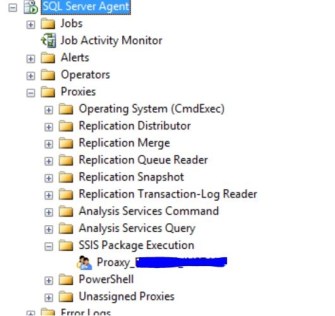
capture3.jpg

Capture4.JPG

Whats next: BAM alert jobs failure. Unhandled exception caught. Stoppping the service.

Error: System.Data.SqlClient.SqlException: The EXECUTE permission was denied on the object ‘bam_Metadata_GetProperty’, database ‘BAMPrimaryImport’, schema ‘dbo’.
at System.Data.SqlClient.SqlConnection.OnError(SqlException exception, Boolean breakConnection, Action`1 wrapCloseInAction)
at System.Data.SqlClient.TdsParser.ThrowExceptionAndWarning(TdsParserStateObject stateObj, Boolean callerHasConnectionLock, Boolean asyncClose)

Application: BAMAlerts.exe
Framework Version: v4.0.30319
Description: The process was terminated due to an unhandled exception.
Exception Info: System.Data.SqlClient.SqlException
at System.Data.SqlClient.SqlConnection.OnError(System.Data.SqlClient.SqlException, Boolean, System.Action`1<System.Action>)
at System.Data.SqlClient.TdsParser.ThrowExceptionAndWarning(System.Data.SqlClient.TdsParserStateObject, Boolean, Boolean)
at System.Data.SqlClient.TdsParser.TryRun(System.Data.SqlClient.RunBehavior, System.Data.SqlClient.SqlCommand, System.Data.SqlClient.SqlDataReader, System.Data.SqlClient.BulkCopySimpleResultSet, System.Data.SqlClient.TdsParserStateObject, Boolean ByRef)

Solution: 

Go to “Stored Procedures”, right-click on the “bam_Metadata_GetProperty” procedure to grant permissions on, and then select “Properties” option.

From Stored Procedure Properties, select the “Permissions”

And to grant permissions to a user, database role, or application role you must click the “Search” button.

  • In this case, we need to give execution privileges to the database role “BAM_ManagementNSReader

Reference: https://blog.sandro-pereira.com/2014/02/05/microsoft-biztalk-bam-management-bammanagerexception-encountered-error-while-executing-command-on-sql-server-domainuser-system-data-sqlclient-sqlexception-the-execute-permissi/

Whats next: Configure SQL BAM profile to use office 365 (as we didn’t wanted to use local SMTP server nor from IIS SMTP Email feature)

Solution: No need to reconfigure BizTalk configuration wizard. just update SQL database mail via “Configure database mail” and “view, change, or delete an existing account” from default bam profile. update only SMTP server and credentials

Capture5.JPG

Whats next: Configure BAM alerts in BAM portal.

for simple value: Set alert will only get enable if you add one record in filter against which you want to create alert.

Capture6.JPG

Aggregated value: Its really hard to find out from msdn how to create alert on aggregated values. we have click on the value to create alerts for respective row and aggregated column

Capture7.JPG

Add subscribers either as email or as File

Whats next: Email alerts was throwing error

The mail could not be sent to the recipients because of the mail server failure. (Sending Mail using Account 22 (2019-10-11T15:50:51). Exception Message: Cannot send mails to mail server. (Transaction failed. The server response was: 5.2.0 STOREDRV.Submission.Exception:SendAsDeniedException.MapiExceptionSendAsDenied; Failed to process message due to a permanent exception with message Cannot submit message. 0.35250:0A000981, 1.36674:0A000000, 1.61250:00000000, 1.45378:02000000, 1.44866:051F0000, 1.36674:0E000000, 1.61250:00000000, 1.45378:0A1F0000, 1.44866:86020000, 16.55847:72100000, 17.43559:0000000004020000000000000000000000000000, 20.52176:140F2B890E00101043050000, 20.50032:140F2B897E17000000000000, 0.35180:48050000, 255.23226:0A000E81, 255.27962:0A000000, 255.27962:0E000000, 255.31418:0A000F81, 0.35250:0A000000, 1.36674:0A000000, 1.61250:00000000, 1.45378:02000000, 1.44866:32000000, 1.36674:32000000, 1.61250:00000000, 1.45378:37000000, 1.44866:01000000, 16.55847:9E000000, 17.43559:0000000000030000000000000000000000000000, 20.52176:140F2B890E0070200A001481, 20.50032:140F2B897E1710106B050000, 0.35180:0A001581, 255.23226:4800D13D, 255.27962:0A000000, 255.27962:32000000, 255.17082:DC040000, 0.27745:75050000, 4.21921:DC040000, 255.27962…).

Solution: This one was the hardest of all as error message couldnt tell where exactly was the issue. Apperently, it was an issue with Email From field, but couldn’t get where was the error. I spent lot of time on this and identified as an issue with BAMalerts.exe. This program has been written to read the Email “From” field from table from dbo.bam_Metadata_Properties database BAMPrimaryImport

SELECT PropertyValue FROM dbo.bam_Metadata_Properties WHERE propertyname = ‘AlertMailFrom’

Updating value in this table will get the Email From field corrected.

VOILA, BAM alerts are working with office 365 now! Hurray!


BizTalk

Context “WCF.Headers” is cached in BizTalk Engine

The scenario where we encountered this issue was during Salesforce integration. Salesforce expects custom header to be passed in the soap envolope.

Issue: INVALID_SESSION_ID: Invalid Session ID found in SessionHeader: Illegal Session. Session not found, missing session hash: wbecQmJucxUexYVBpM7E2jqTFaqEPZRWpOdXMu2wJC8= This error usually occurs after a session expires or a user logs out.


Current :-


msgQueryAllReq(WCF.Headers) = “<headers><SessionHeader xmlns=’urn:partner.soap.sforce.com’><sessionId>” + SessionId +  “</sessionId></SessionHeader></headers>”;

New/Solution:-

msgQueryAllReq(WCF.OutboundCustomHeaders) = “<headers><SessionHeader xmlns=’urn:partner.soap.sforce.com’><sessionId>” + SessionId +  “</sessionId></SessionHeader></headers>”;

Keep Takeaways:

  1. WCF.Headers is cached by BizTalk engine.
  2. SessionHeader should have namespace urn:partner.soap.sforce.com
  3. Session Inactivity time under profile/user level overrides organisation level timeout settings.
  4. Session Management setting in Salesforce gives created and valid until time for every session.
  5. Session ID in login response, session ID in session management and session hash code are linked 1-1.
  6. Session hash code is unique for any given session ID in Salesforce


References:

https://docs.microsoft.com/en-us/biztalk/core/using-soap-headers-in-wcf-messages-with-orchestrations

https://social.msdn.microsoft.com/Forums/en-US/aa8958fe-6b64-427d-9c40-89e516304d5b/biztalk-cached-value-not-getting-changed?forum=biztalkgeneral


BizTalk

FTP Send port: Representation mode

we ran into carriage return and line feed issue during file transfer. The transfer was between different operating platform. The file was written on to FTP path from windows operating system and it read from Linux HP UX machine.

Issue: Additional CR (carriage return) character was added at the end every line

Cause: The mode of transfer was set to binary, actual mode that had to be used was ASCII mode.

This is due to the fact that new line character is handled differently in Windows and UNIX OS. On a Windows computer, pressing the “enter” key inserts two characters in an ASCII text document – a carriage return and a line feed. On UNIX systems, only a line feed is used. ASCII text formatted for use on UNIX systems does not display properly when viewed on a Windows system and vice verse.

So, what is the difference between ASCII and binary?
An ASCII file is a file represented internally using ASCII Codes. ASCII code is a 7-bit code stored in a byte. So in total there are 2^7 = 128 different ASCII codes. for every byte, one bit is wasted.
In binary 8 bits, that is 2^8 = 256 representations are possible.

Its not representation but OS defines what newline is:
DOS / Windows    CR LF    0x0D 0x0A
Mac                      CR         0x0D
Unix                       LF         0x0A

Solution:
Use ASCII mode when different operating systems are involved else use binary mode to transfer binary files. Reading newline character as LF in UNIX and CRLF in windows is taken care automatically by OS. One shouldn’t worry about it.

-Manju

BizTalk

BizTalk 2013: SSO Application Configuration Storage Tool

Beep Beep Boop!!

Finally, Here it is! The ultimate solution for all the issues and questions faced for storing the configuration in SSO store. Before introducing the windows application, what is SSO storage tool? why is it required? Storing configuration data in the SSO database with ease of access in all application. Key Value pairs can be access by any application which are part SSO affiliation or SSO administrators group. The key value pairs can be accessed by the BizTalk Server process without need to refresh the server process.

“THIS IS THE TOOL HAVING FEATURES OF BOTH ‘SSO APPLICATION CONFIGURATION BIZTALK 2013‘ AND ‘SSO WINDOWS APPLICATION‘”

Why do we need to encrypt SSO config files? The SSO configuration  has got popular since the tool was conceptualize by Richard Seroter since 2007. It is when I started learning BizTalk Server 2006 r2. The tool is used to very sensitive data such as connection strings, passwords. With many customers where deployment process is strictly followed and the protection of sensitive information become important. Encryption of the configuration plays a key role. MD5 with TripleDES symmetric encryption is used with Electronic CodeBook mode. The encrypted data is the base64 encoded format.

Custom Tool: I started adding up more and more features as and when as required and was using it for self use. The thoughts and the features started to add in the tool and have come up for handy features. Being a developer, wanted to put all possible effort to make tools which can to make our life simpler. This is tool is based on the Microsoft.BizTalk.Interop.SSOClient.dll, Microsoft.EnterpriseSingleSignOn.Interop.dll version 9.0.1000.0. The tool is developed in dotnet 4.0 and is not testing if it supports prior versions.

Old Features: – Displays application list9.0.1000.0 – One click modification of key/value pairs – One click of multiple application export. – Doesn’t display junk applications starting with ‘{‘

Release version 2.0.0.0 Summary: – User accounts can be auto populated – User accounts can now be edited – fixed user accounts snapping issue for multiple export – Lasted version support Microsoft.EnterpriseSingleSignOn.Interop 9.0.1000.0 – Microsoft MMC SSO config storage compatibility support – MD5 symmetric encrypt/decrypt support

File Formats Used: *.sso  – encrypted MMC console *.xml  – xml legacy format *.ssox – encrypted legacy format *.encrypt – encrypted file *.decrypt – decrypted file note: The format *.sso and *.ssox are different as the plain text xml formats are different. *.sso files needs to be used only with the compatibility mode as “mmc console” and *.ssox needs to be used with the mode “Windows App”. The tool also provides encryption and decryption of the sample files to troubleshoot/understand the file format issues. In case of MMC console mode (for case of *.sso), application name is considered from the file name wheres the application name is part of xml. The sample xml file format is as below: SSO Storage Tool: SSOTool

The tool can be download at here Any suggestions are welcome! Write To: manjunathp@ymail.com
