Nutshell Series

⌨️ The Ultimate Keyboard Shortcuts Cheat Sheet (Windows, Office, Browser & Developer Tools)

Keyboard shortcuts are the secret weapon of productivity. They help you work faster, stay focused, and reduce mouse dependency. Whether you’re using Windows, Microsoft Office, browsers, or coding tools like Visual Studio and VS Code, this guide covers all the essential shortcuts you should know.


🧭 General Windows Shortcuts

  • Alt + Tab β€” Switch between open apps
  • Alt + F4 β€” Close active window or app
  • Win + D β€” Show or hide the desktop
  • Win + E β€” Open File Explorer
  • Win + R β€” Open β€œRun” dialog
  • Win + L β€” Lock your PC
  • Win + I β€” Open Settings
  • Win + S β€” Open Search
  • Win + A β€” Open Quick Settings panel (Wi-Fi, brightness, etc.)
  • Win + V β€” Open Clipboard history
  • Win + . β€” Open Emoji & symbol picker πŸ˜„
  • Win + Shift + S β€” Launch Snipping Tool for screenshots
  • Win + X β€” Open Power User Menu
  • Win + U β€” Open Accessibility options
  • Ctrl + Shift + Esc β€” Open Task Manager directly

πŸͺŸ Window Management Shortcuts

  • Win + ↑ / ↓ / ← / β†’ β€” Snap or maximize windows
  • Win + Home β€” Minimize all except active window
  • Alt + Space β€” Open window control menu (Move, Close, etc.)
  • Alt + Enter β€” Show properties of selected item
  • Win + M β€” Minimize all windows
  • Win + Shift + M β€” Restore minimized windows
  • Win + Tab β€” Open Task View (virtual desktops)
  • Ctrl + Win + D β€” Create new virtual desktop
  • Ctrl + Win + ← / β†’ β€” Switch between desktops
  • Ctrl + Win + F4 β€” Close current virtual desktop

πŸ’» File Explorer Shortcuts

  • Alt + D β€” Focus address bar
  • Ctrl + E / F β€” Focus search box
  • Ctrl + N β€” Open new File Explorer window
  • Ctrl + Shift + N β€” Create new folder
  • Alt + ↑ β€” Go up one folder level
  • Alt + Left / Right β€” Navigate backward / forward
  • F2 β€” Rename selected file or folder
  • F3 β€” Search within File Explorer
  • Alt + Enter β€” View file properties
  • Ctrl + Shift + 2 β€” Change view to Large Icons (and similar view shortcuts)

🧩 Microsoft Office Shortcuts (Word, Excel, PowerPoint, Outlook)

  • Alt + R β€” Open Review tab (Spelling, Comments, Track Changes)
  • Ctrl + K β€” Insert hyperlink
  • Ctrl + Shift + M β€” New message (Outlook)
  • Ctrl + 1 / 2 / 3 β€” Switch Mail / Calendar / Contacts (Outlook)
  • Alt + Q β€” Search for commands (“Tell me what you want to do”)
  • F7 β€” Spell check and grammar
  • Ctrl + ; β€” Insert current date (Excel)
  • Ctrl + Shift + : β€” Insert current time (Excel)
  • Alt + = β€” AutoSum in Excel
  • Ctrl + Space β€” Select column (Excel)
  • Shift + Space β€” Select row (Excel)

🧠 Text Editing Shortcuts (Universal)

  • Ctrl + A β€” Select all
  • Ctrl + C / X / V β€” Copy / Cut / Paste
  • Ctrl + Z / Y β€” Undo / Redo
  • Ctrl + F / H β€” Find / Replace
  • Ctrl + Shift + β†’ / ← β€” Select by word
  • Home / End β€” Move to start / end of line
  • Ctrl + Home / End β€” Move to start / end of document
  • Ctrl + Backspace β€” Delete previous word
  • Ctrl + Delete β€” Delete next word
  • Ctrl + Shift + V β€” Paste without formatting (works in most apps)

🌐 Browser Shortcuts (Edge, Chrome, Firefox)

  • Ctrl + T β€” New tab
  • Ctrl + W β€” Close current tab
  • Ctrl + Shift + T β€” Reopen last closed tab
  • Ctrl + Tab / Ctrl + Shift + Tab β€” Switch between tabs
  • Ctrl + L / Alt + D β€” Focus address bar
  • Ctrl + J β€” Open Downloads
  • Ctrl + H β€” Open History
  • Ctrl + Shift + Delete β€” Clear browsing data
  • Alt + Left / Right β€” Navigate Back / Forward
  • Ctrl + + / – β€” Zoom In / Out
  • F11 β€” Toggle full screen

πŸ’» Visual Studio Shortcuts (C#, .NET, etc.)

  • Ctrl + Shift + B β€” Build solution
  • F5 β€” Start debugging
  • Ctrl + F5 β€” Run without debugging
  • Shift + F5 β€” Stop debugging
  • F9 β€” Toggle breakpoint
  • F10 / F11 β€” Step Over / Step Into
  • Ctrl + K, C β€” Comment selected lines
  • Ctrl + K, U β€” Uncomment selected lines
  • Ctrl + K, D β€” Format document
  • Ctrl + . β€” Quick Actions / Refactor
  • Ctrl + Shift + F β€” Find in entire solution
  • Alt + ↑ / ↓ β€” Move current line up/down

πŸ§‘β€πŸ’» VS Code Shortcuts

  • Ctrl + P β€” Quick open file
  • Ctrl + Shift + P β€” Command palette
  • Ctrl + B β€” Toggle sidebar
  • Ctrl + ` β€” Toggle terminal
  • Ctrl + Shift + ` β€” Create new terminal
  • Alt + ↑ / ↓ β€” Move line up/down
  • Shift + Alt + ↓ β€” Copy line down
  • Ctrl + / β€” Comment/uncomment line
  • Ctrl + D β€” Select next occurrence
  • Ctrl + Shift + L β€” Select all occurrences
  • Ctrl + Space β€” Trigger IntelliSense
  • Ctrl + K, Z β€” Zen mode

βš™οΈ PowerShell / Command Line Shortcuts

  • Ctrl + L β€” Clear screen
  • Ctrl + C β€” Cancel current command
  • ↑ / ↓ β€” Browse command history
  • Tab β€” Auto-complete file or command name
  • Ctrl + Home / End β€” Jump to top / bottom of buffer
  • Ctrl + Shift + C / V β€” Copy / Paste in terminal

⚑ Power User & Productivity Tips

  • Win + Number (1–9) β€” Launch or switch to pinned taskbar apps
  • Ctrl + Shift + Esc β€” Direct Task Manager access
  • Alt + R β€” Review tools in Office apps for proofreading
  • Win + . β€” Use emojis and symbols anywhere (even Notepad!)
  • Ctrl + Shift + T β€” Your life-saver when you accidentally close a browser tab
  • Ctrl + Shift + N β€” New folder or Incognito mode depending on context

Mastering keyboard shortcuts is a game-changer for anyone working on a computer. Start with a few essentials, add new ones weekly, and soon you’ll navigate faster than ever before. Every second counts β€” and with these shortcuts, you’ll reclaim them!
Nutshell Series

Quick Guide to RESTful API Design Principles & Standards

This concise guide combines best practices to help you design clean, consistent, and scalable RESTful APIs.


βš™οΈ 1. Design Around Resources

  • Use nouns, not verbs β€” e.g., /users, /orders/{id}.
  • Keep URIs simple, consistent, and hierarchical.
  • Avoid exposing internal database details.

🧭 2. Use Correct HTTP Methods

Action Method Example
Read GET /orders
Create POST /orders
Update PUT or PATCH /orders/{id}
Delete DELETE /orders/{id}

Ensure idempotency for PUT and DELETE requests.

🧱 3. Stateless & Cacheable

  • Each request must contain all context β€” no server session state.
  • Use caching headers like ETag and Last-Modified where appropriate.

πŸ“„ 4. Use Standard Representations

  • Prefer application/json as the default format.
  • Set proper headers:
    • Content-Type for request format
    • Accept for desired response format

🧩 5. Pagination & Filtering

  • Support ?limit=, ?offset=, or cursor-based pagination.
  • Allow filtering and sorting β€” e.g., ?status=active&sort=desc.

πŸ”’ 6. Versioning

  • Version via URI (e.g., /v1/) or headers.
  • Never break existing clients β€” evolve your API gracefully.

🚦 7. Status Codes & Errors

  • 200 – OK
  • 201 – Created
  • 204 – No Content
  • 400 – Bad Request
  • 404 – Not Found
  • 500 – Server Error

Return clear JSON error messages with a code and description.

πŸ“˜ 8. Documentation & Specification

  • Use OpenAPI (Swagger) or Postman Collections for design and documentation.
  • Document endpoints, parameters, request/response examples.
  • Mock and validate before implementation.

🧭 9. Consistency & Governance

  • Follow organization-wide conventions for naming, versioning, and error handling.
  • Maintain uniform design patterns β€” make every API feel familiar.

βœ… 10. RESTful API Checklist

  • [ ] Resource-based URIs
  • [ ] Correct HTTP verbs
  • [ ] Stateless operations
  • [ ] Consistent JSON responses
  • [ ] Pagination and filtering support
  • [ ] Versioning strategy
  • [ ] Meaningful error format
  • [ ] OpenAPI documentation

πŸ’‘ In Short

Design first, stay consistent, be consumer-friendly, and evolve safely.

Nutshell Series

Top Non-Microsoft NuGet Packages Every .NET Developer Should Know

When building applications with .NET Core or modern .NET (6, 7, 8, 9), you’ll often rely on powerful third-party libraries to simplify development, improve performance, and enhance maintainability. While Microsoft provides a robust foundation, the .NET ecosystem is enriched by an extensive range of open-source NuGet packages. Below is a comprehensive list of commonly used and highly recommended non-Microsoft libraries that can significantly boost your productivity and project quality.

1. Core Utilities & Helpers

  • LanguageExt – Brings functional programming concepts like Option, Either, and Try to C#. :contentReference[oaicite:0]{index=0}
  • MoreLinq – Extends LINQ with over 100 additional operators and utilities.
  • AutoMapper – Simplifies object-to-object mapping, ideal for DTOs and ViewModels. :contentReference[oaicite:1]{index=1}
  • CSharpFunctionalExtensions – Functional programming tools like Result and Maybe for clean error handling.
  • Humanizer – Makes text and time data more human-readable (e.g., β€œ3 hours ago”).

2. Web Development & API

  • FluentValidation – Elegant and fluent model validation framework. :contentReference[oaicite:2]{index=2}
  • Swashbuckle.AspNetCore – Generates Swagger/OpenAPI documentation for ASP.NET Core APIs.
  • Sieve – Adds filtering, sorting, and pagination support to APIs via query parameters.
  • AspNetCoreRateLimit – Provides IP and client-based rate limiting for APIs.
  • Newtonsoft.Json – Popular JSON serialization library, still widely used for flexible handling.

3. Data Access & ORM

  • Dapper – Lightweight and super-fast micro ORM for raw SQL queries.
  • SqlKata – Fluent SQL query builder supporting multiple databases.
  • LiteDB – Embedded NoSQL database ideal for local or small-scale apps.
  • Z.EntityFramework.Plus.EFCore – Adds caching, auditing, and filters to EF Core.
  • Ardalis.Specification – Implements the specification pattern for repositories.

4. Security & Encryption

  • BCrypt.Net-Next – Provides secure password hashing using the bcrypt algorithm.
  • Sodium.Core – Modern cryptography library built on libsodium.
  • Jwt.Net – Helps create, sign, and validate JSON Web Tokens manually.

5. Logging & Monitoring

  • Serilog – The go-to structured logging framework for .NET. :contentReference[oaicite:3]{index=3}
  • Serilog.Sinks.Seq – Log viewer for Serilog (requires the Seq server).
  • Serilog.Sinks.Elasticsearch – Integrates logging directly with Elasticsearch.
  • App.Metrics – Tracks metrics, health checks, and application performance.

6. Testing & Mocking

  • xUnit – Widely used open-source testing framework.
  • NUnit – Classic and feature-rich test framework for .NET.
  • Moq – Most popular mocking library for unit testing.
  • NSubstitute – Simpler syntax alternative to Moq.
  • FluentAssertions – Provides human-readable, expressive assertions.
  • Verify – Enables snapshot testing for objects, APIs, and JSON outputs.

7. Dependency Injection & Architecture

  • Autofac – Advanced and flexible IoC container for .NET.
  • Scrutor – Assembly scanning and decoration utilities for DI.
  • ABP Framework – Modular application framework for enterprise apps.
  • FeatureToggle – Simple library for enabling or disabling features dynamically.

8. Caching & Performance

9. Messaging & Event Bus

  • MassTransit – Enterprise-grade distributed application messaging framework.
  • Rebus – Simple and lightweight service bus for .NE
Nutshell Series

Azure Bicep Cheat Sheet (2025)

What is Azure Bicep?

Bicep is a Domain Specific Language (DSL) for Azure Resource Manager. It simplifies ARM JSON templates into readable and modular code for Infrastructure as Code on Azure.

Basic Structure

@description('Storage account name')
param storageAccountName string
param storageSku string = 'Standard_LRS'

var location = resourceGroup().location

resource storageAccount 'Microsoft.Storage/storageAccounts@2023-01-01' = {
  name: storageAccountName
  location: location
  sku: {
    name: storageSku
  }
  kind: 'StorageV2'
}

output storageEndpoint string = storageAccount.properties.primaryEndpoints.blob

Parameters

@description('Admin username')
param adminUser string = 'azureuser'

@secure()
param adminPassword string

@allowed(['Standard_LRS', 'Standard_GRS'])
param sku string

Variables

var prefix = 'demo'
var uniqueName = '${prefix}${uniqueString(resourceGroup().id)}'
var subnetNames = ['web', 'app', 'db']

Expressions & Interpolation

var fullName = '${prefix}-${environment}-${location}'
var uniqueName = toLower(uniqueString(resourceGroup().id, 'key'))

Resource Declaration

resource myVnet 'Microsoft.Network/virtualNetworks@2023-01-01' = {
  name: 'vnet-${uniqueString(resourceGroup().id)}'
  location: location
  properties: {
    addressSpace: {
      addressPrefixes: ['10.0.0.0/16']
    }
  }
}

Resource Dependencies

Implicit dependency:

resource nic 'Microsoft.Network/networkInterfaces@2023-01-01' = {
  name: 'vmNic'
  properties: {
    ipConfigurations: [
      {
        name: 'ipconfig'
        properties: {
          subnet: { id: subnet.id }
        }
      }
    ]
  }
}

Explicit dependency:

dependsOn: [ nic, storageAccount ]

Loops

var subnets = [
  { name: 'web', prefix: '10.0.1.0/24' }
  { name: 'app', prefix: '10.0.2.0/24' }
]

resource vnet 'Microsoft.Network/virtualNetworks@2023-01-01' = {
  name: 'myVnet'
  properties: {
    addressSpace: { addressPrefixes: ['10.0.0.0/16'] }
    subnets: [for subnet in subnets: {
      name: subnet.name
      properties: { addressPrefix: subnet.prefix }
    }]
  }
}

Conditional Deployment

param enableDiagnostics bool = true

resource diag 'Microsoft.Insights/diagnosticSettings@2021-05-01-preview' = if (enableDiagnostics) {
  name: 'diagSetting'
  properties: {
    ...
  }
}

Modules

Main file:

module storage './storage.bicep' = {
  name: 'storageModule'
  params: {
    storageAccountName: 'mystorage'
    location: location
  }
}

storage.bicep:

param storageAccountName string
param location string

resource storage 'Microsoft.Storage/storageAccounts@2023-01-01' = {
  name: storageAccountName
  location: location
  sku: { name: 'Standard_LRS' }
  kind: 'StorageV2'
}

output storageId string = storage.id

Outputs

output storageId string = storage.id
output connectionString string = 'DefaultEndpointsProtocol=https;AccountName=${storage.name}'

Common Functions

  • resourceGroup() – Current resource group
  • uniqueString() – Deterministic unique ID
  • concat() – Join strings
  • length() – Array or string length
  • contains() – Checks if array contains value
  • if() – Inline condition
  • json() – Parse JSON

Azure CLI Commands

az deployment group create \
  --resource-group myRG \
  --template-file main.bicep \
  --parameters storageSku=Standard_LRS

az deployment group validate \
  --resource-group myRG \
  --template-file main.bicep

az deployment group what-if \
  --resource-group myRG \
  --template-file main.bicep

Scopes

targetScope = 'subscription'

resource rg 'Microsoft.Resources/resourceGroups@2023-01-01' = {
  name: 'myResourceGroup'
  location: 'eastus'
}

Best Practices

  • Use modules for reusable components
  • Validate parameters using @allowed, @minLength
  • Tag all resources consistently
  • Use loops instead of duplicate code
  • Preview changes using what-if
  • Avoid exposing secrets in outputs
  • Keep Bicep files under version control

Helpful CLI Commands

az bicep install
az bicep upgrade
az bicep build --file main.bicep
az bicep decompile --file template.json

Common Resource Types

  • Storage Account – Microsoft.Storage/storageAccounts@2023-01-01
  • Virtual Network – Microsoft.Network/virtualNetworks@2023-01-01
  • Virtual Machine – Microsoft.Compute/virtualMachines@2023-01-01
  • App Service – Microsoft.Web/sites@2023-01-01
  • Key Vault – Microsoft.KeyVault/vaults@2023-01-01
Nutshell Series

C# Delegates and Events – Explained

Delegates and events in C# are foundational concepts that enable flexible, type-safe method references and event-driven programming. Many developers find them confusing at first, but this guide explains them in a simple, easy-to-understand way.


What is a Delegate?

A delegate is a type-safe object that holds a reference to a method with a specific signature. Delegates are similar to function pointers in C or C++, but they are object-oriented, type-safe, and secure.

Delegates allow you to pass methods as parameters to other methods or assign methods at runtime.

// Define a delegate
public delegate int MathOperation(int x, int y);

// Method matching the delegate signature
public class Calculator
{
    public int Add(int a, int b) => a + b;
    public int Multiply(int a, int b) => a * b;
}

// Using the delegate
MathOperation operation = new Calculator().Add;
int result = operation(5, 3); // Output: 8

The delegate’s signature (return type + parameters) must match the method it references. This allows delegates to be used as **callbacks** or **pluggable methods** in your code.


Delegate Magic

Delegates are special objects. Unlike normal objects that contain data, a delegate only contains information about a method.
Delegates do not depend on the class of the object they reference; only the method signature matters.
This allows anonymous method invocation and runtime flexibility.


Benefits of Delegates

  • Type-safe: Ensures the method signature matches.
  • Object-oriented: Fully compatible with OOP principles.
  • Secure: No unsafe pointers.
  • Flexible: Can be used to pass methods around, define callbacks, and plug in new behavior dynamically.

Types of Delegates

C# delegates come in two main types:

1. Singlecast Delegate

A singlecast delegate points to a single method at a time.

public delegate void Notify(string message);

public class Messenger
{
    public void ShowMessage(string msg)
    {
        Console.WriteLine(msg);
    }
}

// Using singlecast delegate
Notify notify = new Messenger().ShowMessage;
notify("Hello World!"); // Only calls ShowMessage

2. Multicast Delegate

A multicast delegate can reference multiple methods. Delegates in C# are multicast by default and derived from System.MulticastDelegate.

public delegate void Notify(string message);

public class Messenger
{
    public void ShowMessage(string msg)
    {
        Console.WriteLine(msg);
    }

    public void LogMessage(string msg)
    {
        Console.WriteLine("Log: " + msg);
    }
}

Messenger m = new Messenger();
Notify notify = m.ShowMessage;
notify += m.LogMessage; // Add second method

notify("Hello World!");
// Output:
// Hello World!
// Log: Hello World!

Events in C#

An event is a mechanism that allows a class to notify other classes or objects when something happens.
Events are based on delegates and are widely used in GUI programming, data binding, and event-driven applications.

// Declare a delegate for the event
public delegate void ThresholdReachedEventHandler(int threshold);

// Class that publishes the event
public class Counter
{
    public event ThresholdReachedEventHandler ThresholdReached;
    private int total;

    public void Add(int x)
    {
        total += x;
        if (total >= 10)
        {
            ThresholdReached?.Invoke(total); // Trigger event
        }
    }
}

// Class that subscribes to the event
public class Listener
{
    public void OnThresholdReached(int value)
    {
        Console.WriteLine($"Threshold reached: {value}");
    }
}

// Usage
Counter counter = new Counter();
Listener listener = new Listener();

counter.ThresholdReached += listener.OnThresholdReached;
counter.Add(5);
counter.Add(6); // Triggers event

In this example, the Counter class fires the ThresholdReached event when a certain total is reached,
and the Listener responds to it.


Steps to Define and Use Delegates

  1. Declare a delegate with a method signature.
  2. Create methods matching the delegate signature.
  3. Create a delegate instance and assign methods.
  4. Invoke the delegate.
  5. (Optional) Use multicast delegates or events.

Summary Table

Concept Definition Example
Delegate Type-safe reference to a method MathOperation delegate
Singlecast Delegate Points to a single method Notify notify = messenger.ShowMessage;
Multicast Delegate Points to multiple methods notify += messenger.LogMessage;
Event Notifies other classes when something happens, based on delegates ThresholdReached event
Anonymous Delegate Delegate without a named method notify = delegate(string msg) { Console.WriteLine(msg); };
Callback Method passed via delegate to be called later MathOperation used as parameter
Nutshell Series

Object-Oriented Programming Concepts in C#

Object-Oriented Programming (OOP) helps us design applications using real-world concepts.
Below we explore important OOP principles and relationships in C#, along with examples.


Class

A Class is a blueprint that defines properties and methods.

public class Car
{
    public string Brand { get; set; }
    public void Drive()
    {
        Console.WriteLine($"{Brand} is driving.");
    }
}

Object

An Object is an instance of a class.

Car car1 = new Car { Brand = "Toyota" };
car1.Drive(); // Output: Toyota is driving.

Abstraction

Abstraction focuses on essential details while hiding the complexity.

public abstract class Payment
{
    public abstract void ProcessPayment(decimal amount);
}

public class CreditCardPayment : Payment
{
    public override void ProcessPayment(decimal amount)
    {
        Console.WriteLine($"Paid {amount} using Credit Card.");
    }
}

Encapsulation

Encapsulation hides implementation details using access modifiers.

public class BankAccount
{
    private decimal balance;

    public void Deposit(decimal amount) => balance += amount;
    public decimal GetBalance() => balance; // only controlled access
}

Polymorphism

Polymorphism allows the same method name to perform different tasks.

Overloading

public class Calculator
{
    public int Add(int a, int b) => a + b;
    public double Add(double a, double b) => a + b;
}

Overriding

public class Animal
{
    public virtual void Speak() => Console.WriteLine("Animal sound");
}

public class Dog : Animal
{
    public override void Speak() => Console.WriteLine("Bark");
}

Inheritance

Inheritance lets a class reuse properties and methods from a parent class.

public class Vehicle
{
    public void Start() => Console.WriteLine("Vehicle started");
}

public class Bike : Vehicle
{
    public void RingBell() => Console.WriteLine("Bell rings!");
}

Sealed Class

A sealed class cannot be inherited.

public sealed class Logger
{
    public void Log(string msg) => Console.WriteLine(msg);
}

Multiple Inheritance

C# does not allow multiple inheritance of classes, but interfaces provide it.

public interface IFly
{
    void Fly();
}

public interface ISwim
{
    void Swim();
}

public class Duck : IFly, ISwim
{
    public void Fly() => Console.WriteLine("Duck flying");
    public void Swim() => Console.WriteLine("Duck swimming");
}

Abstract Class

An abstract class cannot be instantiated directly; it must be inherited.

public abstract class Shape
{
    public abstract double Area();
}

public class Circle : Shape
{
    public double Radius { get; set; }
    public override double Area() => Math.PI * Radius * Radius;
}

Generalization

Generalization groups common features into a parent class.

public class Teacher : Person { }
public class Student : Person { }

public class Person
{
    public string Name { get; set; }
}

Association

Association represents a relationship between classes.

public class Customer
{
    public string Name { get; set; }
}

public class Order
{
    public Customer OrderedBy { get; set; }
}

Aggregation

Aggregation is a weak β€œwhole-part” relationship.

public class Department
{
    public List Employees { get; set; } = new List();
}

public class Employee
{
    public string Name { get; set; }
}

Composition

Composition is a strong β€œwhole-part” relationship. If the whole is destroyed, parts are also destroyed.

public class House
{
    private Room room;
    public House()
    {
        room = new Room(); // Room cannot exist without House
    }
}

public class Room { }

Multiplicity

Multiplicity defines how many objects can participate in a relationship.

public class Library
{
    public List Books { get; set; } = new List();
}

public class Book { }

Interface

An interface defines a contract without implementation.

public interface INotifier
{
    void Send(string message);
}

public class EmailNotifier : INotifier
{
    public void Send(string message)
    {
        Console.WriteLine($"Email sent: {message}");
    }
}

Summary Table

Concept Definition Example
Class Blueprint of objects Car
Object Instance of a class car1 = new Car()
Abstraction Focus on essentials Payment (abstract)
Encapsulation Data hiding BankAccount with private balance
Polymorphism Many forms Calculator.Add() overloads, Dog.Speak() override
Inheritance Reuse parent properties Bike inherits Vehicle
Sealed Class Cannot be inherited Logger
Multiple Inheritance Via interfaces Duck : IFly, ISwim
Abstract Class Must be inherited Shape
Generalization Group common features Person parent for Student, Teacher
Association Relationship Order β†’ Customer
Aggregation Weak whole-part Department β†’ Employees
Composition Strong whole-part House β†’ Room
Multiplicity How many objects Library β†’ Books
Interface Contract without implementation INotifier
Nutshell Series

Complete Guide to Service Status Pages of Popular services

When working with Microsoft cloud services such as Azure, Microsoft 365, Visual Studio, or GitHub or any other services, it’s important to know where to check the official status dashboards. These pages help you quickly confirm whether an issue is on your side or a wider service outage.

Below is a consolidated table of the official status and health pages you should bookmark.

Service Status Page Notes
Azure Azure Status Dashboard
Azure Service Health
Azure Resource Health
Global real-time status of all Azure services by region.
Service Health
Resource Health
Azure (Personalized) Azure Service Health (Portal) Requires login; shows service health specific to your subscriptions.
Microsoft 365 / Office 365 Microsoft 365 Admin Center Admin-only; covers Exchange Online, SharePoint, Teams, OneDrive, etc.
Microsoft 365 (Public) Microsoft Cloud Status Broad incidents affecting Microsoft 365 services.
Microsoft 365 Updates @MSFT365Status on X/Twitter Official updates on outages and recovery progress.
Visual Studio Visual Studio Service Status Tracks licensing and Visual Studio service availability.
Azure DevOps Azure DevOps Status Shows pipelines, repos, artifacts, and test plan health.
GitHub GitHub Status Monitors repositories, Actions, Codespaces, Packages, etc.
Dynamics 365 Dynamics 365 Status Service health and incidents for Dynamics 365 apps.
Power Platform Power Platform Status Real-time health for Power BI, Power Apps, Power Automate, and Power Virtual Agents.
Xbox Live Xbox Status Tracks Xbox Live, Game Pass, multiplayer, and account service health.
Office Connectivity Office Connectivity Status Office Connectivity
Jira / Atlassian Atlassian Status Page Tracks Jira, Confluence, Bitbucket, Trello, and other Atlassian cloud services.
Slack Slack Status Real-time status of messaging, calls, and integrations.
Google Workspace Google Workspace Status Shows health of Gmail, Drive, Docs, Calendar, Meet, and more.
AWS AWS Service Health Dashboard Regional health information for EC2, S3, RDS, Lambda, and other AWS services.
Zoom Zoom Status Monitors meetings, chat, phone, and webinar services.
Dropbox Dropbox Status Tracks cloud file storage and sync service health.
Salesforce Salesforce Status Service health for Sales Cloud, Service Cloud, Marketing Cloud, and more.
Zendesk Zendesk Status Tracks helpdesk, chat, and CRM services.

Why These Status Pages Matter

Whenever you face connectivity issues, sign-in failures, or downtime in Microsoft services, checking these official dashboards should be your first step. They help distinguish between a local setup problem and a wider outage.

Bookmark these links to save troubleshooting time and stay informed about Microsoft and GitHub service health.

Nutshell Series

Clustered vs Non-Clustered Index in SQL – Nutshell Guide

Indexes are the backbone of query performance in relational databases. But not all indexes are the same β€” clustered and non-clustered indexes work differently. In this blog, we’ll break down both types with real-world examples and explain how searching actually works.

What is a Clustered Index?

  • A clustered index defines the physical order of rows in the table.
  • There can be only one clustered index per table (since rows can only be stored in one order).
  • In many databases, the PRIMARY KEY automatically becomes the clustered index.

Example:

CREATE TABLE Employees (
  EmployeeID INT PRIMARY KEY,   -- Clustered index by default
  FirstName VARCHAR(50),
  LastName VARCHAR(50),
  DepartmentID INT,
  Email VARCHAR(100)
);

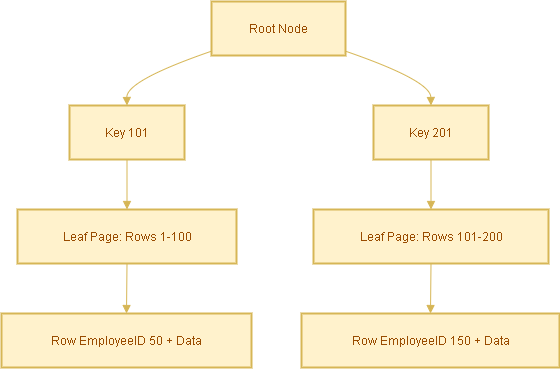
Here, EmployeeID is the clustered index. Rows are physically stored sorted by EmployeeID.

What is a Non-Clustered Index?

  • A non-clustered index is a separate structure from the table.
  • It stores the indexed column(s) plus a row locator (pointer) to the actual data row.
  • You can create multiple non-clustered indexes on a table.

Example:

CREATE INDEX idx_lastname ON Employees(LastName);

Now, searches on LastName will use this non-clustered index.

How Searching Works in Each Case

Case A: Search with Clustered Index

Query:

SELECT * FROM Employees WHERE EmployeeID = 105;

Because EmployeeID is the clustered index:

  • The database navigates the clustered index B-tree directly.
  • It finds the row immediately β€” no extra lookup needed.
  • βœ… Fastest possible lookup.

Case B: Search with Non-Clustered Index

Query:

SELECT * FROM Employees WHERE LastName = 'Smith';

Steps:

  1. Database searches the non-clustered index idx_lastname for ‘Smith’.
  2. Index contains entries like:
    'Smith' β†’ EmployeeID 105
    'Smith' β†’ EmployeeID 256
  3. Database uses the EmployeeID (the clustered index key) to look up the actual row in the table.

This extra step is called a bookmark lookup (or key lookup).

Covering Index Optimization

To avoid the extra lookup, you can create a covering index that includes all required columns.

Query:

SELECT LastName, Email
FROM Employees
WHERE LastName = 'Smith';

Create a covering index:

CREATE INDEX idx_lastname_covering
ON Employees(LastName) INCLUDE (Email);

Now the index already has LastName and Email, so the query is answered directly from the index β€” no table lookup required.

Analogy to Understand Better

  • Clustered index = A phonebook sorted by last name. You open it and find the full entry directly.
  • Non-clustered index = An index card with a name and a page number. You must still flip to that page to see the full entry.

Summary

  • Clustered Index: Rows are physically stored in order. Direct lookup = fastest.
  • Non-Clustered Index: Separate structure, requires an extra lookup to get the full row.
  • Covering Index: Extends non-clustered indexes by including extra columns to avoid lookups.
Nutshell Series

Data Warehouse Concepts β€” Nutshell Guide

Introduction

Data warehousing powers reporting and analytics across enterprises. If you’re learning or documenting data warehouse concepts for a WordPress blog, this SEO-optimized post covers the must-know keywords, classification of data (transactional/snapshot/accumulating), dimension behavior (SCD types), and concise examples you can use right away.

Core Concepts

  • Data Warehouse (DW) – Central repository for integrated historical and current data used for reporting and analytics.
  • ETL (Extract, Transform, Load) – Traditional pipeline: extract from sources β†’ transform β†’ load into DW.
  • ELT (Extract, Load, Transform) – Modern approach: load raw data into DW/cloud, then transform inside it.
  • OLTP (Online Transaction Processing) – Systems for day-to-day transactional processing (source systems).
  • OLAP (Online Analytical Processing) – Systems/tools optimized for multi-dimensional analysis and complex queries.

Types of Data Warehouses

  • Enterprise Data Warehouse (EDW) – Organization-wide, authoritative repository.
  • Data Mart – Department-focused subset (e.g., Sales Data Mart).
  • Operational Data Store (ODS) – Near-real-time store for operational reporting and short-term history.
  • Cloud Data Warehouse – Fully-managed cloud services (e.g., Snowflake, BigQuery, Azure Synapse).

Schema & Design

  • Star Schema – One central fact table joined to denormalized dimension tables. Simple and fast for queries.
  • Snowflake Schema – Normalized dimensions that break dimension tables into related tables (more joins).
  • Fact Table – Stores measurements/measurable events (e.g., sales amount, quantity).
  • Dimension Table – Describes context for facts (e.g., Customer, Product, Date).
  • Granularity – Level of detail (e.g., transaction-level vs daily aggregate).

Types of Fact Tables (Data Types)

Fact tables represent events or measures. Main types:

  • Transaction Facts – Each row is an individual event (e.g., a single order line, a payment). High granularity and append-heavy.
  • Snapshot Facts – Captures the state of an entity at a specific time (e.g., month-end balance, daily inventory snapshot).
  • Accumulating Facts – Track lifecycle/process milestones and get updated as steps complete (e.g., order β†’ fulfillment β†’ delivery). Useful to measure elapsed times between milestones.
  • Factless Facts – Records events or coverage without numeric measures (e.g., student attendance, promotion eligibility).

Types of Dimensions

  • Conformed Dimension – Reused across multiple facts/data marts (e.g., a single Customer dimension used by sales and support).
  • Role-Playing Dimension – Same dimension used for multiple roles (e.g., Date as order_date, ship_date, invoice_date).
  • Degenerate Dimension – Dimensionless attributes stored in fact (e.g., invoice number) β€” no separate dimension table.
  • Junk Dimension – Combines low-cardinality flags and indicators into a single small dimension table to avoid cluttering the fact table with many columns.
  • Slowly Changing Dimension (SCD) – Describes strategies to handle changes to dimension attributes over time. See next section for details.

Slowly Changing Dimensions (SCDs) β€” Types & Examples

SCDs define how historical changes in dimension attributes are handled. Choose based on analytic requirements and storage:

SCD Type 0 β€” No Change

The attribute never changes (static). Example: a legacy product code that must remain as originally loaded.

SCD Type 1 β€” Overwrite

New values overwrite existing records. No history retained. Example: correct a customer’s misspelled name and replace the old value.

SCD Type 2 β€” Add New Row (Full History)

Each change inserts a new row with effective date range or version key. History preserved. Typical implementation uses effective_from, effective_to or a current flag.

Example: Customer moves city β€” SCD2 creates a new customer dimension row with a new surrogate key, while the old row stays for historical reporting.

SCD Type 3 β€” Partial History

Keep limited history by adding columns like previous_value and current_value. Only the last change or limited changes are tracked.

Example: A customer’s previous country and current country stored as separate columns.

Hybrid / Mixed SCD

Combine SCD strategies for different attributes on the same table. E.g., overwrite some fields (Type 1), keep full history for address (Type 2), and store last value for preferred language (Type 3).

Data Types β€” Logical & Technical

Logical Classification (what the data represents)

  • Fact Data β€” Measured values (sales amount, clicks).
  • Dimension Data β€” Descriptive/contextual (product name, customer segment).
  • Aggregated Data β€” Summaries for performance (daily totals, monthly averages).
  • Operational Data β€” Near real-time transactional data from source systems.
  • Metadata β€” Data about data: schema, lineage, source system mapping.

Typical Database Data Types (technical)

  • Numeric – INTEGER, BIGINT, DECIMAL/NUMERIC, FLOAT (quantities, amounts).
  • Character – CHAR, VARCHAR, TEXT (names, descriptions, codes).
  • Date/Time – DATE, TIMESTAMP, DATETIME (order date, event time).
  • Boolean – BOOLEAN / BIT (flags, true/false attributes).
  • Binary / BLOB – Binary large objects for images or files (rare in DW fact/dimension tables).

Processing & Storage

  • Staging Area – Temporary workspace for raw extracts; cleansed before loading into DW.
  • Data Lake – Repository for raw/unstructured/semi-structured data often used as the source for DW/ELT.
  • Cold/Warm/Hot Storage – Classify data by access patterns and cost requirements (hot = frequently accessed).

Performance & Optimization

  • Indexing – Speed up lookups (use carefully on large DW tables).
  • Partitioning – Split large tables by date or key for faster scans and management.
  • Materialized Views – Precomputed query results for faster reporting.
  • Denormalization – Favor read performance for OLAP workloads (e.g., star schema).

Governance & Quality

  • Data Cleansing – Standardize and correct data before it becomes authoritative.
  • Data Lineage – Trace where values came from and how they changed (essential for trust & audits).
  • Master Data Management (MDM) – Centralize canonical entities like customer and product.
  • Data Governance – Policies, roles, and rules to manage data quality, privacy, access and compliance.

Quick Cheatsheet (Table)

Term Short Explanation Example
Transaction Fact Row-per-event with measures. Each order line with price and qty.
Snapshot Fact State captured at a time. Monthly account balances.
Accumulating Fact Progress of a process; rows updated. Order lifecycle status and timestamps.
SCD Type 2 Keep history by adding new rows per change. Customer address history over time.
Conformed Dimension Shared dimension across marts/facts. One Customer table used by Sales & Support.

FAQ

Q: When should I use SCD Type 2 vs Type 1?

A: Use SCD Type 2 when historical accuracy is required (e.g., reporting by customer’s historical region). Use Type 1 when only the latest value matters and history is not needed (e.g., correcting a typo).

Q: Should I store images or documents in the data warehouse?

A: Generally no β€” store large binaries in object storage (data lake or blob store) and keep references/URLs in the DW.

Conclusion

This post provides a compact but comprehensive reference for data warehouse keywords, fact/dimension types, and SCD strategies. Use it as a template for documentation, training, or as SEO-optimized content for your WordPress blog. If you want, I can also:

  • Convert the cheatsheet into a downloadable CSV
  • Produce simple SVG diagrams for a star schema and SCD Type 2 example
  • Rewrite the post to target a specific keyword phrase (e.g., “datawarehouse SCD guide”)
Nutshell Series

GitHub Copilot Commands and Shortcuts – Nutshell Guide

GitHub Copilot is more than just code suggestions β€” it’s a full productivity assistant for developers. Whether you’re using Visual Studio Code, Visual Studio, or JetBrains, knowing the right commands and shortcuts can save you time and effort.

Here’s a complete cheat sheet with all the essential GitHub Copilot commands, keyboard shortcuts, and slash commands you need to boost your workflow.

πŸ’‘ Copilot Suggestions Shortcuts

These shortcuts help you quickly accept, reject, or browse through Copilot’s code completions:

  • Tab β†’ Accept Copilot suggestion
  • Alt + . β†’ Show next suggestion
  • Alt + , β†’ Show previous suggestion

πŸ’¬ Copilot Chat Shortcuts

Copilot Chat is like having an AI coding buddy inside your IDE. Use these to start conversations faster:

  • Ctrl + Alt + I / Ctrl + Cmd + I β†’ Open Copilot Chat panel
  • Ctrl + I / Cmd + I β†’ Start inline chat directly in the editor
  • Ctrl + Shift + Alt + L β†’ Open Quick Chat / Agent mode
  • Alt + / β†’ Open inline chat in Visual Studio

πŸš€ Copilot Slash Commands

Slash commands give you quick, powerful ways to ask Copilot to do specific tasks:

  • /fix β†’ Automatically fix compiler or linting errors
  • /explain β†’ Get an explanation of the selected code
  • /tests β†’ Generate unit tests (supports frameworks like Jest, xUnit, etc.)
  • /docs β†’ Add or improve documentation comments
  • /generate β†’ Generate a code snippet for a described task
  • /optimize β†’ Suggest performance and efficiency improvements

πŸ› οΈ Chat Helpers

Make your chat conversations with Copilot smarter by using these helpers:

  • @ β†’ Tag a specialist agent (e.g., @workspace for project-wide context)
  • # β†’ Reference a file or a specific line (e.g., #app.js:24)

βš™οΈ Repository Configuration

Want Copilot to follow your project’s rules and style guide? You can configure it at the repo level:

  • .github/copilot-instructions.md β†’ Add custom instructions so Copilot knows how to follow your coding style and conventions

πŸ”₯ Pro Tips for Developers

  • Type / in Copilot Chat to see all available slash commands
  • Use @workspace to ask questions about your entire project, not just the current file
  • Keep your README.md and copilot-instructions.md updated β€” Copilot uses them to understand your project better