Technology and tricks

Slowness of Deployments via ARM template for APIM

One of common way of deploying Azure resources is via ARM templates. ARM templates are help us to achieve an infrastructure-as-code solution for Azure deployments and give control of operations team. The ARM template processing of resources is in a declarative manner. This means that the desired state of the resources is defined in the template, and the ARM service ensures that the resources are created and configured to match that state.

ARM templates are complex when it comes to troubleshooting and testing as it takes lot of time. If you have ever received below error and ARM templates are huge, then it will a nightmare. Of the way to look at increasing performance of ARM deployments by removing unnecessary elements in the templates.

One of such issues i was struggling was with below errors.

{
  "error": {
    "code": "ServerClosedRequest",
    "message": "An internal server error was encountered while processing request for 'Microsoft.ApiManagement'. Please try your request again later."
  }
}

{
  "error": {
    "code": "ManagementApiRequestFailed",
    "message": "Failed to connect to management endpoint xxxx.management.azure-api.net:3443 for Developer SKU service which will have inherent downtime during underneath platform upgrades. Please refer to SLA at https://aka.ms/apimsla and considering upgrading to a SKU Tier with higher SLA."
  }
}

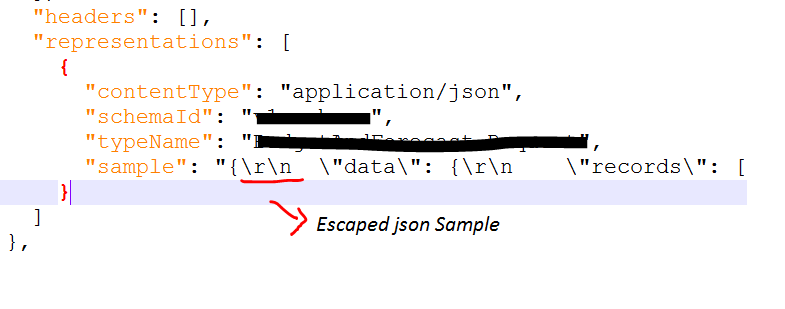
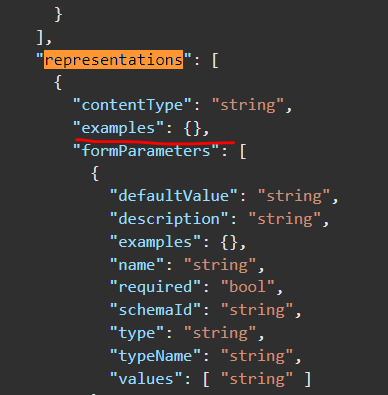
Root cause of this issue was with the node marked with “examples”. It contains unescaped/unwrapped json examples. I had to remove these examples and add to “sample” node as wrapped and escaped

I hope this was a similar or exact issue you faced and help you to resolve it. If you have further question or want to share similar issue, please comment

BizTalk

Journey of enabling BizTalk BAM alerts via office 365 SMTP

I’m writing this blog as i couldn’t get straight forward steps neither from msdn nor from google. I had to refer basic of SQL database mail, RTA – real time aggregation, few of the blogs together.

My requirement was to set BAM alert on aggregated value which exeeds limit of 1000. I had built an activity, view and dimension for recording number of requests mades.

First Issue: Activity deployment error using BM.exe

Updating Activity… Done.
EXEC : Updating View… error : The BAM deployment failed.
SQL Analysis Services 2008 Enterprise Edition is not configured. Can not create OLAP cubes for RTAs.

Cause and resolution: This is main caused as RTA (real time aggregation) was enabled in excel sheet. There is small icon in the excel bam template which need to be unchecked. RTA is not support in SQL standard version and supported only in enterprise version.
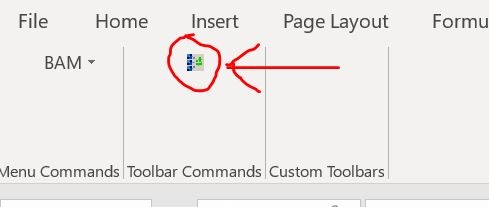
capture.jpg

Whats next: Now how to get near real time experiance on SQL standard version?

Solution: Create a job, under SQL agent, add steps to run two DTS packages from SSIS. Put schedule as run as every minute or once per 2 minute.

BAM_AN_*, BAM_DM_*
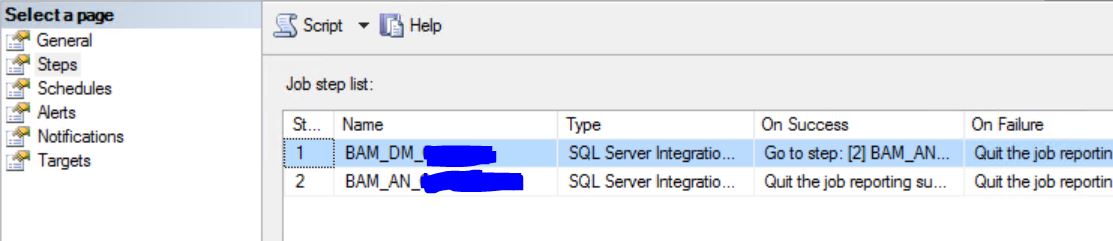
Capture1.JPG

Capture2.JPG

Additionally, if you are unable to see aggregation data then either your RTA is disabled and Aggregation jobs are not running. Aggregation packages doesnt run automatically for scheduled aggregation. we need to create a job in SQL agent.

Whats next: Issues runing the job as BAM user

Error: Connecting to the Integration Services service on the computer “XXXX” failed with the following error: “Access is denied.”

By default, only administrators have access to the Integration Services service. On Windows Vista and later, the process must be running with administrative privileges in order to connect to the Integration Services service. See the help topic for information on how to configure access to the service.

Solution: Dont waste time in granting permissions in component services for integration services (as many articles says), Instead create a proxy user in SQL server and and run the agent job under proxy user. Proxy user can be created under proxies of SQL server agent
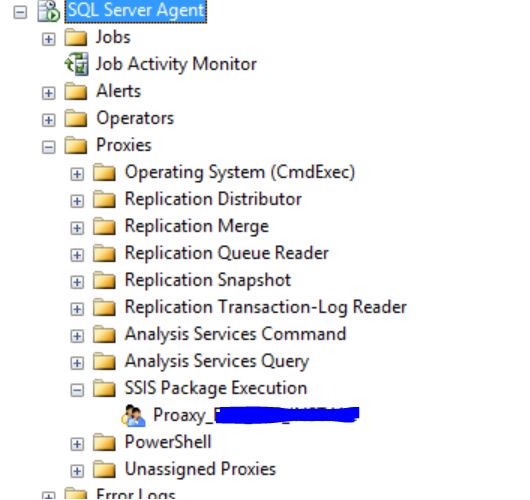
capture3.jpg

Capture4.JPG

Whats next: BAM alert jobs failure. Unhandled exception caught. Stoppping the service.

Error: System.Data.SqlClient.SqlException: The EXECUTE permission was denied on the object ‘bam_Metadata_GetProperty’, database ‘BAMPrimaryImport’, schema ‘dbo’.
at System.Data.SqlClient.SqlConnection.OnError(SqlException exception, Boolean breakConnection, Action`1 wrapCloseInAction)
at System.Data.SqlClient.TdsParser.ThrowExceptionAndWarning(TdsParserStateObject stateObj, Boolean callerHasConnectionLock, Boolean asyncClose)

Application: BAMAlerts.exe
Framework Version: v4.0.30319
Description: The process was terminated due to an unhandled exception.
Exception Info: System.Data.SqlClient.SqlException
at System.Data.SqlClient.SqlConnection.OnError(System.Data.SqlClient.SqlException, Boolean, System.Action`1<System.Action>)
at System.Data.SqlClient.TdsParser.ThrowExceptionAndWarning(System.Data.SqlClient.TdsParserStateObject, Boolean, Boolean)
at System.Data.SqlClient.TdsParser.TryRun(System.Data.SqlClient.RunBehavior, System.Data.SqlClient.SqlCommand, System.Data.SqlClient.SqlDataReader, System.Data.SqlClient.BulkCopySimpleResultSet, System.Data.SqlClient.TdsParserStateObject, Boolean ByRef)

Solution: 

Go to “Stored Procedures”, right-click on the “bam_Metadata_GetProperty” procedure to grant permissions on, and then select “Properties” option.

From Stored Procedure Properties, select the “Permissions”

And to grant permissions to a user, database role, or application role you must click the “Search” button.

  • In this case, we need to give execution privileges to the database role “BAM_ManagementNSReader

Reference: https://blog.sandro-pereira.com/2014/02/05/microsoft-biztalk-bam-management-bammanagerexception-encountered-error-while-executing-command-on-sql-server-domainuser-system-data-sqlclient-sqlexception-the-execute-permissi/

Whats next: Configure SQL BAM profile to use office 365 (as we didn’t wanted to use local SMTP server nor from IIS SMTP Email feature)

Solution: No need to reconfigure BizTalk configuration wizard. just update SQL database mail via “Configure database mail” and “view, change, or delete an existing account” from default bam profile. update only SMTP server and credentials
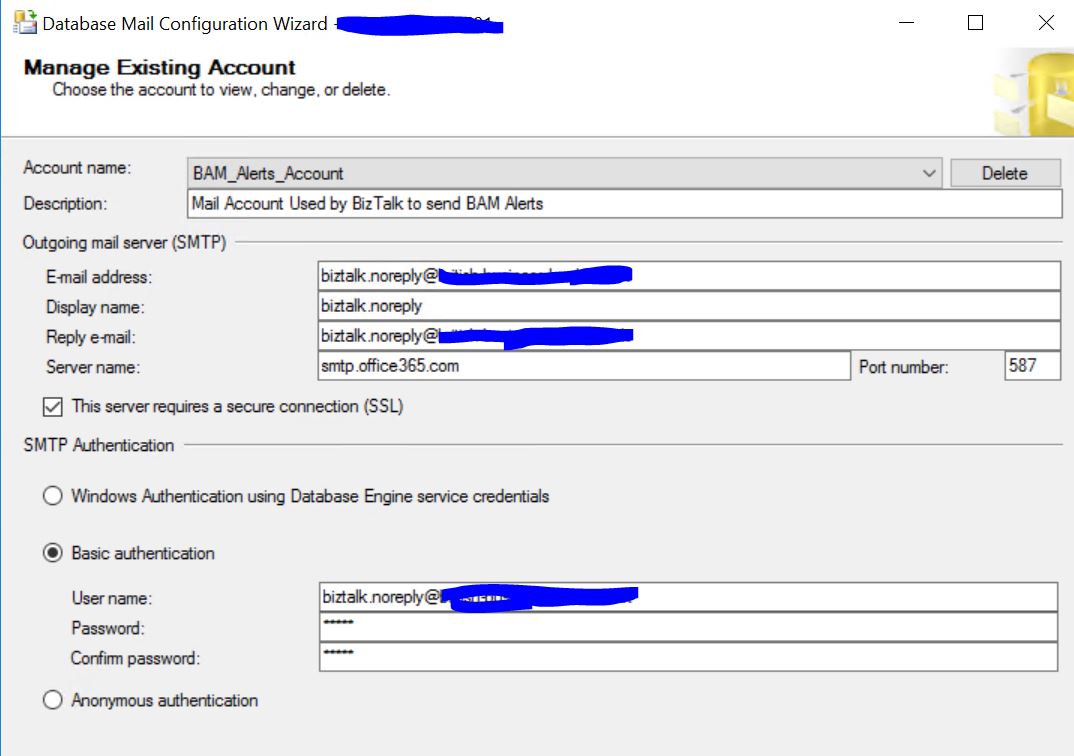
Capture5.JPG

Whats next: Configure BAM alerts in BAM portal.

for simple value: Set alert will only get enable if you add one record in filter against which you want to create alert.
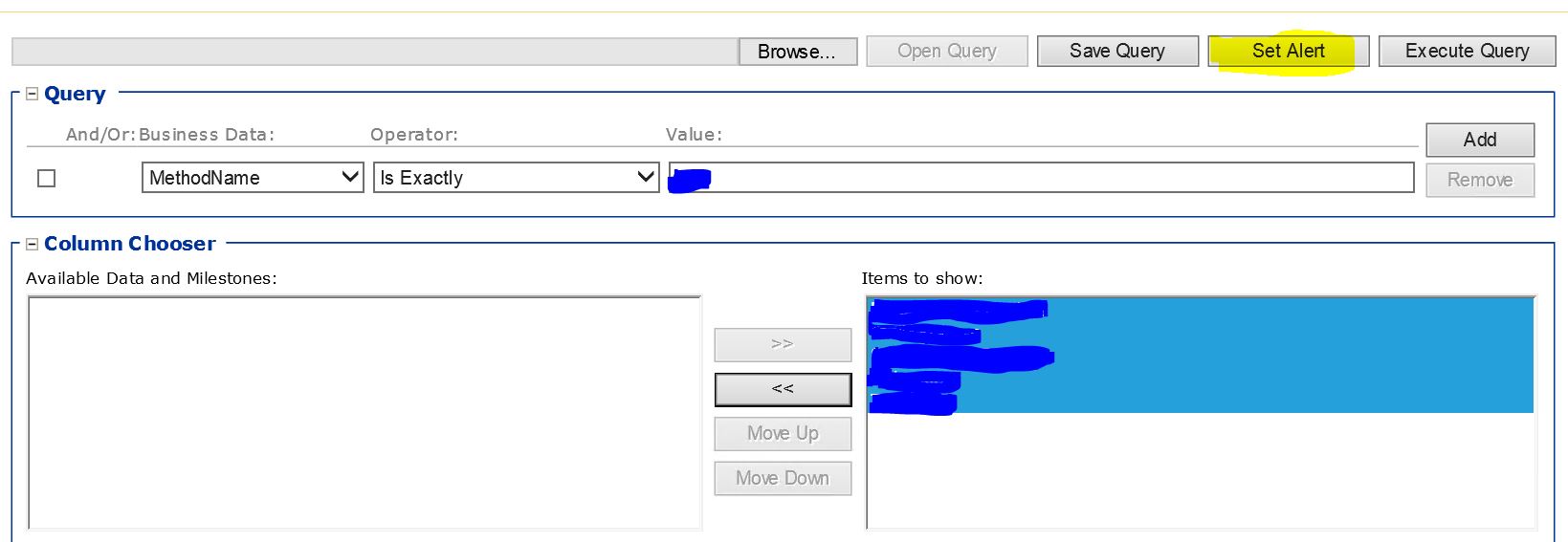
Capture6.JPG

Aggregated value: Its really hard to find out from msdn how to create alert on aggregated values. we have click on the value to create alerts for respective row and aggregated column
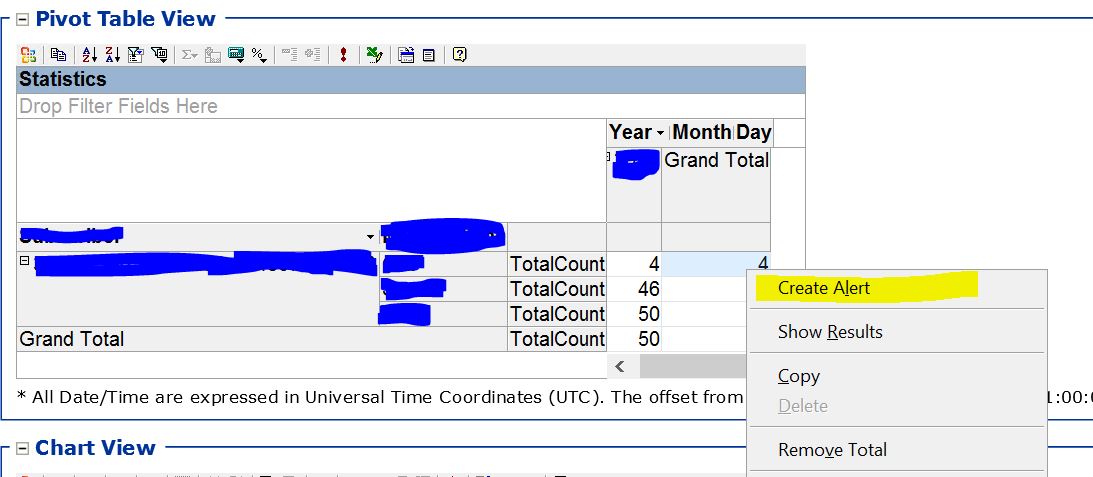
Capture7.JPG

Add subscribers either as email or as File

Whats next: Email alerts was throwing error

The mail could not be sent to the recipients because of the mail server failure. (Sending Mail using Account 22 (2019-10-11T15:50:51). Exception Message: Cannot send mails to mail server. (Transaction failed. The server response was: 5.2.0 STOREDRV.Submission.Exception:SendAsDeniedException.MapiExceptionSendAsDenied; Failed to process message due to a permanent exception with message Cannot submit message. 0.35250:0A000981, 1.36674:0A000000, 1.61250:00000000, 1.45378:02000000, 1.44866:051F0000, 1.36674:0E000000, 1.61250:00000000, 1.45378:0A1F0000, 1.44866:86020000, 16.55847:72100000, 17.43559:0000000004020000000000000000000000000000, 20.52176:140F2B890E00101043050000, 20.50032:140F2B897E17000000000000, 0.35180:48050000, 255.23226:0A000E81, 255.27962:0A000000, 255.27962:0E000000, 255.31418:0A000F81, 0.35250:0A000000, 1.36674:0A000000, 1.61250:00000000, 1.45378:02000000, 1.44866:32000000, 1.36674:32000000, 1.61250:00000000, 1.45378:37000000, 1.44866:01000000, 16.55847:9E000000, 17.43559:0000000000030000000000000000000000000000, 20.52176:140F2B890E0070200A001481, 20.50032:140F2B897E1710106B050000, 0.35180:0A001581, 255.23226:4800D13D, 255.27962:0A000000, 255.27962:32000000, 255.17082:DC040000, 0.27745:75050000, 4.21921:DC040000, 255.27962…).

Solution: This one was the hardest of all as error message couldnt tell where exactly was the issue. Apperently, it was an issue with Email From field, but couldn’t get where was the error. I spent lot of time on this and identified as an issue with BAMalerts.exe. This program has been written to read the Email “From” field from table from dbo.bam_Metadata_Properties database BAMPrimaryImport

SELECT PropertyValue FROM dbo.bam_Metadata_Properties WHERE propertyname = ‘AlertMailFrom’

Updating value in this table will get the Email From field corrected.

VOILA, BAM alerts are working with office 365 now! Hurray!
 

Azure, DevOps

Azure devops – Powershell – passwords

Error:
2019-09-23T18:56:36.7532247Z ##[command]. ‘C:\vstsagent\A1\_work\r1\a\xxxxx\ConfigureHosts.ps1’ -BizTalkHostGroup “BizTalk Application Users” -BizTalkHostInstanceAccount “xxx\SVC_xxx” -BizTalkHostInstanceAccountPassword “***” -BizTalkIsolatedHostGroup “BizTalk Isolated Host Users” -BizTalkIsolatedHostInstanceAccount “xxx\SVC_xxx” -BizTalkIsolatedHostInstanceAccountPassword “***”
2019-09-23T18:56:37.3226214Z ##[error]Invoke-Expression : At line:1 char:393
+ … xxxx” -BizTalkIsolatedHostInstanceAccountPassword ” &JDN+K …
+                                                                 ~
The ampersand (&) character is not allowed. The & operator is reserved for future use; wrap an ampersand in double
quotation marks (“&”) to pass it as part of a string.
Solution:
Problem is not with & instead all special charecter needs escape sequence. In my case i had ` and ” in the password which needed to be replace with escape sequence.
replace ` with ` ` and ” with “”
BizTalk

Biztalk – Adapter handler creation error

Error:

CreateBizTalkAdapterHandler : WCF-WebHttp Receive Handler for IsolatedHost could not be created: Exception calling
“Invoke” with “2” argument(s): “Access denied “.Exception.ToString()
At C:\vstsagent\A1\_work\r1\a\xxx\ConfigureHosts.ps1:356 char:1
+ CreateBizTalkAdapterHandler ‘WCF-WebHttp’ ‘Receive’ ‘IsolatedHost’ …
+ ~~~~~~~~~~~~~~~~~~~~~~~~~~~~~~~~~~~~~~~~~~~~~~~~~~~~~~~~~~~~~~~~~~~~~
+ CategoryInfo : NotSpecified: (:) [Write-Error], WriteErrorException
+ FullyQualifiedErrorId : Microsoft.PowerShell.Commands.WriteErrorException,CreateBizTalkAdapterHandler

Inner exception:
Type: System.Management.ManagementException
Access denied
at System.Management.ManagementException.ThrowWithExtendedInfo(ManagementStatus errorCode)
at System.Management.ManagementObject.Put(PutOptions options)
at System.Management.Instrumentation.SchemaNaming.RegisterAssemblySpecificDecoupledProviderInstance()
at System.Management.Instrumentation.SchemaNaming.RegisterAssemblySpecificSchema()
at System.Management.Instrumentation.ManagementInstaller.Install(IDictionary savedState)
at System.Configuration.Install.Installer.Install(IDictionary stateSaver)
at System.Configuration.Install.AssemblyInstaller.Install(IDictionary savedState)
at System.Configuration.Install.Installer.Install(IDictionary stateSaver)
at System.Configuration.Install.TransactedInstaller.Install(IDictionary savedState)


Solution: 

Added user to Biztalk administrator and SSO administrator group.

For other issues refer : https://docs.microsoft.com/en-gb/windows/win32/wmisdk/wmi-troubleshooting

Azure, Azure Integration Services

API Management Common Policies – Nutshell

Common Policies

1. Authentication

check-header – Validates the presence and value of a header.

<check-header name="Authorization" exists="true" />

check-query-parameter – Validates the presence and value of a query parameter.

<check-query-parameter name="apikey" exists="true" />

2. Rate Limiting

rate-limit-by-key – Limits the number of calls based on a key.

<rate-limit-by-key calls="100" renewal-period="60" />

rate-limit – General rate limiting for API calls.

<rate-limit calls="1000" renewal-period="3600" />

3. Caching

cache-lookup – Retrieves data from the cache.

<cache-lookup vary-by-developer="false" vary-by-developer="false" />

cache-store – Stores data in the cache.

<cache-store duration="300" />

4. Transformation

set-header – Sets or modifies HTTP headers.

<set-header name="X-Custom-Header" exists-action="override">MyValue</set-header>

rewrite-uri – Changes the request URI.

<rewrite-uri template="/new-path/{path}" />

json-to-xml – Converts JSON data to XML.

<json-to-xml />

5. Response Manipulation

set-status – Sets the HTTP status code.

<set-status code="200" reason="OK" />

set-body – Sets or modifies the response body.

<set-body>{"message":"Success"}</set-body>

6. Logging

log-to-eventhub – Sends logs to Azure Event Hub.

<log-to-eventhub />

log-to-application-insights – Sends logs to Application Insights.

<log-to-application-insights />

7. Security

validate-jwt – Validates JWT tokens.

<validate-jwt header-name="Authorization" require-scheme="Bearer" />

cors – Configures Cross-Origin Resource Sharing (CORS).

<cors allow-headers="*" allow-methods="*" allow-origins="*" />

Examples for Request Parameters

1. Query Parameters

Extract query parameters from the request.

<set-variable name="queryParam" value="@(context.Request.OriginalUrl.Query["paramName"])" />

2. Path Parameters

Extract path parameters from the request URL.

<set-variable name="pathParam" value="@(context.Request.MatchedParameters["pathParamName"])" />

3. Headers

Access HTTP headers from the request.

<set-variable name="headerValue" value="@(context.Request.Headers.GetValueOrDefault("HeaderName", "defaultValue"))" />

4. Matched Parameters

Use parameters matched by routing templates.

<set-variable name="matchedParam" value="@(context.Request.MatchedParameters["matchedParamName"])" />

Usage Tips

Use these policies and examples to manage API access, control traffic, transform requests/responses, and handle various API management tasks effectively.

.Net, C#

Creating String extension function

public static string ToCamelCase(this string str)
{
if (!string.IsNullOrEmpty(str) && str.Length > 1)
{
return Char.ToUpperInvariant(str[0]) + str.Substring(1);
}
return str;
}

Usage:
string text = “test data”;
string camalCaseText = text.ToCamelCase();

Output: Test data

Function declaration should be done outside of main class.

https://docs.microsoft.com/en-us/dotnet/csharp/programming-guide/concepts/linq/how-to-add-custom-methods-for-linq-queries

BizTalk, C#

Static variables are non serlizable by default – A Common problem in BizTalk solutions

Below error appears on restart of host instance manually or due to the automatic restart of host instance due to DTC issue (Also know as Host instance recovering its state due to network issues or crashing of instances)

Shape name: ShapeName
ShapeId: d0e0ca4a-cd4b-44d2-a662-526f65665ad5
Exception thrown from: segment 1, progress 37
Inner exception: Index was out of range. Must be non-negative and less than the size of the collection.
Parameter name: index

OR

Object reference not set an instance of an object.

Problem: Static variable are not serlizable. This is the standard problem in BizTalk solution where static variables are used within class libraries..

Solution:

With Serialization, we can only serialize properties that are:

  • Public
  • Not static
  • Not read Only

In this case, if you want to serialize by adding new variable “no1_Serialize“, you must wrap it, like this:

[Serializable]
public class Numbers
{
    public int no;
    public static int no1;
    public SubNumbers SubNumber;

    public int no1_Serialize {get {return no1;} set {no1 = value;} }
}

Ref: https://stackoverflow.com/questions/17222900/serialize-object-along-with-static-member-variables-to-xml


BizTalk

Context “WCF.Headers” is cached in BizTalk Engine

The scenario where we encountered this issue was during Salesforce integration. Salesforce expects custom header to be passed in the soap envolope.

Issue: INVALID_SESSION_ID: Invalid Session ID found in SessionHeader: Illegal Session. Session not found, missing session hash: wbecQmJucxUexYVBpM7E2jqTFaqEPZRWpOdXMu2wJC8= This error usually occurs after a session expires or a user logs out.


Current :-


msgQueryAllReq(WCF.Headers) = “<headers><SessionHeader xmlns=’urn:partner.soap.sforce.com’><sessionId>” + SessionId +  “</sessionId></SessionHeader></headers>”;

New/Solution:-

msgQueryAllReq(WCF.OutboundCustomHeaders) = “<headers><SessionHeader xmlns=’urn:partner.soap.sforce.com’><sessionId>” + SessionId +  “</sessionId></SessionHeader></headers>”;

Keep Takeaways:

  1. WCF.Headers is cached by BizTalk engine.
  2. SessionHeader should have namespace urn:partner.soap.sforce.com
  3. Session Inactivity time under profile/user level overrides organisation level timeout settings.
  4. Session Management setting in Salesforce gives created and valid until time for every session.
  5. Session ID in login response, session ID in session management and session hash code are linked 1-1.
  6. Session hash code is unique for any given session ID in Salesforce


References:

https://docs.microsoft.com/en-us/biztalk/core/using-soap-headers-in-wcf-messages-with-orchestrations

https://social.msdn.microsoft.com/Forums/en-US/aa8958fe-6b64-427d-9c40-89e516304d5b/biztalk-cached-value-not-getting-changed?forum=biztalkgeneral


Azure

What does SLA mean in cloud – Azure

https://en.wikipedia.org/wiki/High_availability

https://azure.microsoft.com/en-in/support/legal/sla/summary/

https://azure.microsoft.com/en-us/support/legal/sla/cloud-services/v1_5/

Availability % Downtime per year Downtime per month Downtime per week Downtime per day
55.5555555% (“nine fives”) 162.33 days 13.53 days 74.92 hours 10.67 hours
90% (“one nine”) 36.53 days 73.05 hours 16.80 hours 2.40 hours
95% (“one and a half nines”) 18.26 days 36.53 hours 8.40 hours 1.20 hours
97% 10.96 days 21.92 hours 5.04 hours 43.20 minutes
98% 7.31 days 14.61 hours 3.36 hours 28.80 minutes
99% (“two nines”) 3.65 days 7.31 hours 1.68 hours 14.40 minutes
99.5% (“two and a half nines”) 1.83 days 3.65 hours 50.40 minutes 7.20 minutes
99.8% 17.53 hours 87.66 minutes 20.16 minutes 2.88 minutes
99.9% (“three nines”) 8.77 hours 43.83 minutes 10.08 minutes 1.44 minutes
99.95% (“three and a half nines”) 4.38 hours 21.92 minutes 5.04 minutes 43.20 seconds
99.99% (“four nines”) 52.60 minutes 4.38 minutes 1.01 minutes 8.64 seconds
99.995% (“four and a half nines”) 26.30 minutes 2.19 minutes 30.24 seconds 4.32 seconds
99.999% (“five nines”) 5.26 minutes 26.30 seconds 6.05 seconds 864.00 milliseconds
99.9999% (“six nines”) 31.56 seconds 2.63 seconds 604.80 milliseconds 86.40 milliseconds
99.99999% (“seven nines”) 3.16 seconds 262.98 milliseconds 60.48 milliseconds 8.64 milliseconds
99.999999% (“eight nines”) 315.58 milliseconds 26.30 milliseconds 6.05 milliseconds 864.00 microseconds
99.9999999% (“nine nines”) 31.56 milliseconds 2.63 milliseconds 604.80 microseconds 86.40 microseconds