Author: Manjunath
“Life is about passions. Thank you for sharing mine” -- M. Schumacher
Pipeline Component Load() and Save() error
Error:
Pipeline Component gives error “Pipeline componet Load() method failed on IPersistPropertyBag implementation: <name of the Pipeline component>” while dragged on one of the stages for pipeline

Pipeline Component gives error “Pipeline componet Save() method failed on IPersistPropertyBag implementation: <name of the Pipeline component>” while trying to save the pipeline

Solution: Implement the Argument exception handling. Do not use third party dll in the argument exception handling
Microsoft.BizTalk.Component.Interop.IPropertyBag pb;
string propName;
string propName;
object val = null;
try
{
pb.Read(propName, out val, 0);
}
catch (System.ArgumentException argEx)
{
//Do not use third pary dll logging
return val;
}
catch (System.Exception e)
{
//Can use any third party dll logging
throw new System.ApplicationException(e.Message);
}
return val;
Pipeline Component, Seekable stream issue
One of my projects we were working on the the Archiving pipeline component. we want to file in any stage of the pipeline component, hence we had it as any type
[ComponentCategory(CategoryTypes.CATID_Any)]
[ComponentCategory(CategoryTypes.CATID_PipelineComponent)]
Error faced:
There was a failure executing the send pipeline: “<Pipeline assembly>” Source: “<Pipeline Component name>” Send Port: “<Send port name>” URI: “URI path” Reason: ForwardOnlyEventingReadStream does not support Seek()
Cause:
usage of stream (System.IO.Stream) object when it is non seekable. when the stream object becomes non seekable the data in the stream get lost. when tried to retreive data from the stream the above error appears.
Solution:
Use seekable object from the class Microsoft.BizTalk.Streaming.ReadOnlySeekableStream. This ReadOnlySeekableStream is overrided implemenation (Inherited class) ofthe stream and handles seekable stream.
//Donot use stream objects
originalStrm = new ReadOnlySeekableStream(inmsg.BodyPart.GetOriginalDataStream());
//After Catch use this
finally
{
if (binWriter != null)
{
binWriter.Flush();
binWriter.Close();
}
if (originalStrm != null)
{
if (!originalStrm.CanSeek)
{
ReadOnlySeekableStream seekableStream = new ReadOnlySeekableStream(inmsg.BodyPart.GetOriginalDataStream());
seekableStream.Position = 0;
inmsg.BodyPart.Data = seekableStream;
inmsg.BodyPart.Data.Position = 0;
}
else
{
originalStrm.Seek(0, SeekOrigin.Begin);
inmsg.BodyPart.Data = originalStrm;
}
}
}
Implementation of macro in Pipeline Component
Below are few of the macros and implementation in .Net/BizTalk.net. This can be directly used in the archiving pipeline component
“%datetime%” -> DateTime.Now.ToString(“yyyy-MM-ddTHHmmss”);
“%datetime_bts2000%” -> DateTime.Now.ToString(“yyyyMMddHHmmsss”);
“%datetime.tz%” -> DateTime.Now.ToString(“yyyy-MM-ddTHHmmsszzz”).Replace(“:”,“”);
“%MessageID%” -> InMsg.MessageID.ToString();
“%SourceFileName%” -> InMsg.Context.Read(“ReceivedFileName”, “http://schemas.microsoft.com/BizTalk/2003/file-properties”).ToString();
“%time%” -> DateTime.Now.ToString(“HHmmss”).Replace(“:”, “”);
“%time.tz%” -> DateTime.Now.ToString(“HHmmsszzz”).Replace(“:”, “”);
Implementaion of the searching pattern to search the pattern %<any alpha number or . >%
string pattern = @”[%][\w|.]*[%]”;
string strMatch = “”;
foreach (Match match in Regex.Matches(FileNameWithMacro, pattern))
{
ReadMacro(match.Value); //This will be method implmentation of replacing macro with actaull file content.
FileName = FileName.Replace(match.Value, strMatch);
strMatch =“”;
}
FTP Send port: Representation mode
we ran into carriage return and line feed issue during file transfer. The transfer was between different operating platform. The file was written on to FTP path from windows operating system and it read from Linux HP UX machine.
Issue: Additional CR (carriage return) character was added at the end every line
Cause: The mode of transfer was set to binary, actual mode that had to be used was ASCII mode.
This is due to the fact that new line character is handled differently in Windows and UNIX OS. On a Windows computer, pressing the “enter” key inserts two characters in an ASCII text document – a carriage return and a line feed. On UNIX systems, only a line feed is used. ASCII text formatted for use on UNIX systems does not display properly when viewed on a Windows system and vice verse.
So, what is the difference between ASCII and binary?
An ASCII file is a file represented internally using ASCII Codes. ASCII code is a 7-bit code stored in a byte. So in total there are 2^7 = 128 different ASCII codes. for every byte, one bit is wasted.
In binary 8 bits, that is 2^8 = 256 representations are possible.
Its not representation but OS defines what newline is:
DOS / Windows CR LF 0x0D 0x0A
Mac CR 0x0D
Unix LF 0x0A
Solution:
Use ASCII mode when different operating systems are involved else use binary mode to transfer binary files. Reading newline character as LF in UNIX and CRLF in windows is taken care automatically by OS. One shouldn’t worry about it.
-Manju
BizTalk error: Exception occurred when persisting state to the database
Error: Inner exception: Exception occurred when persisting state to the database.
Exception type: PersistenceException
Source: Microsoft.XLANGs.BizTalk.Engine
Target Site: Void Commit()
The following is a stack trace that identifies the location where the exception occured
at Microsoft.BizTalk.XLANGs.BTXEngine.BTXXlangStore.Commit()
at Microsoft.XLANGs.Core.Service.Persist(Boolean dehydrate, Context ctx, Boolean idleRequired, Boolean finalPersist, Boole
Cause: One of the cause is when we have direct send port in orchestrations, and no subscriptions are listening to it. The message will be sent to message box and message will be suspended routing error. The issue comes when orchestration engine try to save the persistence point just after the send shape. As the subscriptions, are not available its throw an exception as “Exception occurred when persisting state to the database”
Solution: Have subscription for all message especially when we have direct port.

BizTalk 2013: SSO Application Configuration Storage Tool
Beep Beep Boop!!
Finally, Here it is! The ultimate solution for all the issues and questions faced for storing the configuration in SSO store. Before introducing the windows application, what is SSO storage tool? why is it required? Storing configuration data in the SSO database with ease of access in all application. Key Value pairs can be access by any application which are part SSO affiliation or SSO administrators group. The key value pairs can be accessed by the BizTalk Server process without need to refresh the server process.
“THIS IS THE TOOL HAVING FEATURES OF BOTH ‘SSO APPLICATION CONFIGURATION BIZTALK 2013‘ AND ‘SSO WINDOWS APPLICATION‘”
Why do we need to encrypt SSO config files? The SSO configuration has got popular since the tool was conceptualize by Richard Seroter since 2007. It is when I started learning BizTalk Server 2006 r2. The tool is used to very sensitive data such as connection strings, passwords. With many customers where deployment process is strictly followed and the protection of sensitive information become important. Encryption of the configuration plays a key role. MD5 with TripleDES symmetric encryption is used with Electronic CodeBook mode. The encrypted data is the base64 encoded format.
Custom Tool: I started adding up more and more features as and when as required and was using it for self use. The thoughts and the features started to add in the tool and have come up for handy features. Being a developer, wanted to put all possible effort to make tools which can to make our life simpler. This is tool is based on the Microsoft.BizTalk.Interop.SSOClient.dll, Microsoft.EnterpriseSingleSignOn.Interop.dll version 9.0.1000.0. The tool is developed in dotnet 4.0 and is not testing if it supports prior versions.
Old Features: – Displays application list9.0.1000.0 – One click modification of key/value pairs – One click of multiple application export. – Doesn’t display junk applications starting with ‘{‘
Release version 2.0.0.0 Summary: – User accounts can be auto populated – User accounts can now be edited – fixed user accounts snapping issue for multiple export – Lasted version support Microsoft.EnterpriseSingleSignOn.Interop 9.0.1000.0 – Microsoft MMC SSO config storage compatibility support – MD5 symmetric encrypt/decrypt support
File Formats Used: *.sso – encrypted MMC console *.xml – xml legacy format *.ssox – encrypted legacy format *.encrypt – encrypted file *.decrypt – decrypted file note: The format *.sso and *.ssox are different as the plain text xml formats are different. *.sso files needs to be used only with the compatibility mode as “mmc console” and *.ssox needs to be used with the mode “Windows App”. The tool also provides encryption and decryption of the sample files to troubleshoot/understand the file format issues. In case of MMC console mode (for case of *.sso), application name is considered from the file name wheres the application name is part of xml. The sample xml file format is as below:  Storage Tool:
The tool can be download at here Any suggestions are welcome! Write To: manjunathp@ymail.com
Outlook Credentials keeps popping up
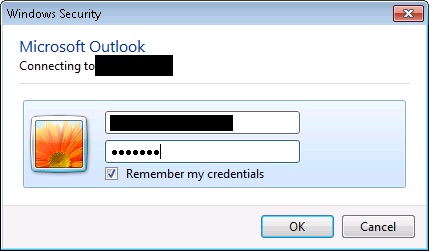
Issue: when u configure the outlook email box, the credentials window keeps popping up again and again even after the correct credentials is entered
Resolution:
1) Clear vault in the credentials manager ( ***IMPORTANT*** make sure you take a backup and screenshot of the server details in credentials manager)
2) Repair install the office to this resolves the issue some times. Also try installing service pack
3) This resolution step worked for me. Create new profile in the email, and re-configure the mail box. If this doesn’t resolves the issue, then add the windows credentials manually for your email exchange server. You can get exchanger server info that needs to be added in credential manager either by capturing network packets using tools such as Wire-Shark or fiddler (OR you can also get server details from the backup screen shot from step 1 if you are configuring outlook for 2nd time)

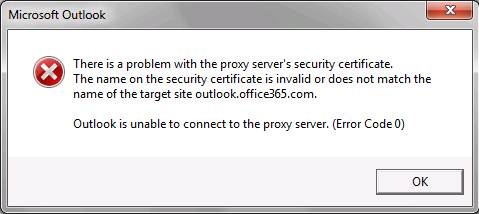
4) You also uncheck the proxy, if it is checked. This causes the error message as

There is not specific solutions for this issue which worked for me right away. I had to struggle for some 2 days to get it worked. Any of the above solutions can work for you. Please comment if you have any specific/above solution worked for you.
Good Day!
-Manju
How to save password in for office communicator (OCS 2007)
How to get save password option for Office Communicator users
Open Registry editor and locate the following key
HKLM/Software/Policies/Microsoft/Communicator, and set SavePassword=1.
This enables a checkbox to save password in MOC login dialogue.
After the password is entered it is saved into the registry
HKCU/Software/Microsoft/Communicator/AccountPassword
This registry key store in hashed value. Changing the hash requires re-entering the password.

Note: You may want to use this option if MOC users login from workgroup machine, or Kerberos auth is not working. [If the following path in registry is not available, then create newly and add the key]
SQL Isolation Levels
In the SQL Server database, isolation levels determine how concurrent transactions play with each other. They control the locking behavior of a transaction, including what kind of locks, if any, are requested on a resource, as well as how long those locks are maintained. The isolation level also controls how we see data that is being modified by another process.
Concurrency side effects
Ideally, you want an isolation level that incurs the minimum amount of locking possible, and still gets you committed data in an acceptable timeframe. With potentially hundreds of processes all accessing the same data, this is no small request. There are a few potential side effects to concurrency, such as dirty reads, phantom reads, and blocking.
Dirty reads – reads on data that has been modifed by another transaction but not yet committed. If the modifying transaction ends up getting rolled back, the reading transaction has invalid (aka dirty) data.
Phantom reads – when one transaction accesses the same set of data more than once and between those reads another transaction modifies that same data. This can cause records to appear/disappear from one read to another.
Blocking – when one transaction holds a lock on a resource and another transaction tries to obtain an incompatible lock on the same resource. For example, if both transactions try to lock a record exclusively. The second transaction will be blocked by the first, and will have to wait until the first lock is released.
[Note: particular scenario of at least two resources Blocking the same data results in the other type of locking called as Deadlocks]
There are three type of locks need to be understood
- Shared Locks
- Exclusive Locks
- Update Locks
A Shared lock is obtained when the SELECT statement is executed. SELECT statement doesn’t do any changes to the data, hence there can multiple shared locks on a single resource at any time.
A Exclusive lock is obtained when the INSERT or DELETE statement is executed. The exclusive lock will prevent any other connection from accessing the locked resource until it is lock released. There can be only one Exclusive lock against any resource.
A Update Lock occurs when the UPDATE statement is executed. It can be considered as an special case of shared lock along with exclusive lock.
further, there can be only one type of lock can be allocated to any resource at one time. for example, if shared lock is allocation then exclusive lock cannot be allocation and vice verse.
Before understanding the isolation levels, the above terms needs to be understood thoroughly.
Isolation Levels
Let’s start with an overview of the isolation levels available in SQL Server. The first is Read Uncommitted. Read uncommitted is the lowest isolation level, and the only thing is ensures is that the data you’re reading isn’t physically corrupt. Read uncommitted transactions do not issue any shared locks on the data being read. Therefore they do not block other transactions, nor are they blocked, even by other transactions’ exclusive locks. Therefore, with read uncommitted isolation you’re susceptible to dirty and phantom reads, but if you have a long-running query, this level is the least likely to cause blocking problems.
The next isolation level is Read Committed. Read committed is the default isolation level in SQL Server. It ensures that the data being read is committed, thereby eliminating the possibility of dirty reads. However, it does not eliminate phantom reads. Shared locks are issued on rows being read, so this level can cause blocking for other transactions attemting to modify that data.
Repeatable read isolation eliminates dirty and, to a degree, phantom reads. Shared locks are placed on all data being read and are maintained until the transaction is committed or rolled back. This prevents data from disappearing or changing between individual reads. However another transaction can always insert new records that meet your criteria, and you’ll suddenly have additional rows in your dataset. You want to be careful to use repeatable read only where necessary, as long-running transactions can end up blocking other processes for quite a while.
If you’re familiar with Oracle databases, Snapshot isolation will sound familiar. Snapshot isolation ensures that all data read by a transaction will be a consistent version of the data as it existed at the start of the transaction. It does not issue locks on read requests, thus it doesn’t block other transactions. With snapshot isolation, there are no dirty reads and no phantom reads, either. How does SQL Server do it? Row versioning. Row versions of changed data are maintained in Tempdb with a transaction sequence number. So make sure you have adequate space in tempdb if you decide Snapshot isolation is right for you.
The last, and most restrictive, isolation level is Serializable. With Serializable isolation, uncommitted data isn’t read (so no dirty reads), data being read cannot be modified by other transactions, and new data cannot be inserted if it will fall inside the dataset of this transaction (so no phantom reads). SQL Server accomplishes this by issuing range locks on the data being used by this transaction. Like repeatable read, this level should only be used when absolutely necessary.
 Techy Chalkboard in bits and pieces
You must be logged in to post a comment.