Issue:
Visual Studio 2017 does not Show up Azure-subscription whereas in PowerShell console its works.
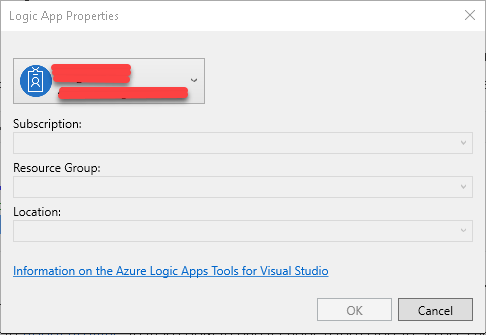
Solution option 1:
- Close all visual studio instances
- Delete %LOCALAPPDATA%.IdentityService file
- Restart Visual Studio and log in to server explorer and it might resolve the issue.
Solution option 2:
In Visual Studio 2017, first you need to install Cloud Explorer for Visual Studio 2017 (Tools –> Extensions and Updates). To complete this install, you are going to have to close your project and exit Visual Studio and then it will install.
After you re-open Visual Studio, double check to make sure you installed the Cloud Explorer.
Now open the Cloud Explorer (View –> Cloud Explorer)
You should see a listing item that says “Azure” with your login identifier but it may say
Right click on the item that says Azure and then select “Connect to Microsoft Azure Subscription”
You will need to sign in once again to your Microsoft Account even though you are already signed into Visual Studio 2017
Then it says “One or More Services are not supported by Server Explorer, open in Cloud Explorer”.

Oyla! it worked.

 Techy Chalkboard in bits and pieces